WELCOME TO Penguin WP Theme Document

Please find below documentation for Penguin theme, and If you have any questions that are beyond the scope of this help file,
please feel free to email via my Themeforest user page.

installation


Download the Package

After purchasing Penguin theme please navigate to your downloads tab on Themeforest and find Penguin Theme. Click the download button next to Penguin theme and choose All Files and document choice, save the package on your computer.


Please unzip the downloaded ZIP File . Inside the extracted folder, you will find Folders like Documentaion , Licencse and Upload. Inside upload you can find your main Theme Folder (Penguin) and the child Theme folder (Penguin Child)


Upload and install The Theme

When you are ready to install a theme (After unpacked the package), you must first upload the theme main folder (Penguin) to your server, then you can activate the theme . The theme files can be uploaded in two different ways:


1- FTP Upload:
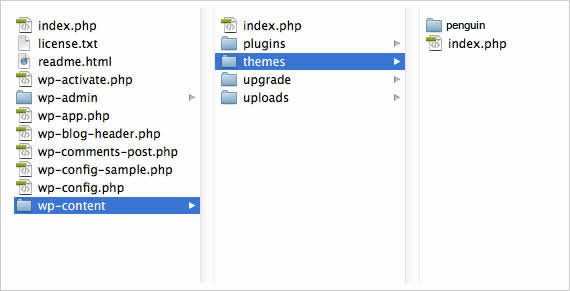
Using your FTP program, upload the non-zipped Penguin theme folder into the /wp-content/themes/ on your server.

2- WordPress Theme Manager:
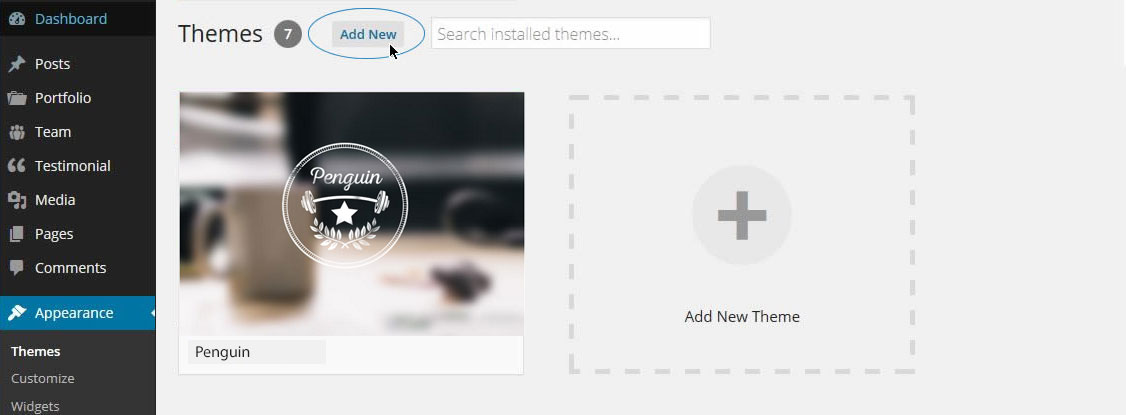
Navigate to Appearance > Add New Themes > Upload. Go to browse, and select the zipped theme folder. Hit (Install Now) and the theme will be uploaded and installed.


Once the theme is uploaded, you just need to activate . Go to WP Menu -> Appearance > Themes and activate Penguin theme.


Activate Plugins

1. Woocommerce:
it's highly recommended to activate Woocommerce Plugin before import Penguin Demo data (the next step), activating woocommerce allow Penguin import demo data correctly for woocommerce products and pages .

2. Contact Form 7 :
To use the contact form within your home page contact section you should activate the Contact form 7 Plugin .

3. Revolution Slider :
To use Revolution Slider within your pages you should activate it .

4. Visual Composer :
To use Visual Composer page builder within your pages you should activate it .

5. Envato WordPress Toolkit :
To use Envato WordPress Toolkit for Envato Marketplace hosted items you should activate it .


Demo Content Import

To Get Exactly the same content you see at Penguin Demo you have two different ways:
1-One Click Demo Installation

We add the possibility to install your favirot demo version easily by just one click installation setup, All you need to do is just go to WP Menu -> Appearance > Demo Importer section and choose the version exactly you want to install.


You can also select if you want to install Theme Options or not Theme Option includes the Main Layout Options as Theme Color , Blog Layout and etc.



2-XML files

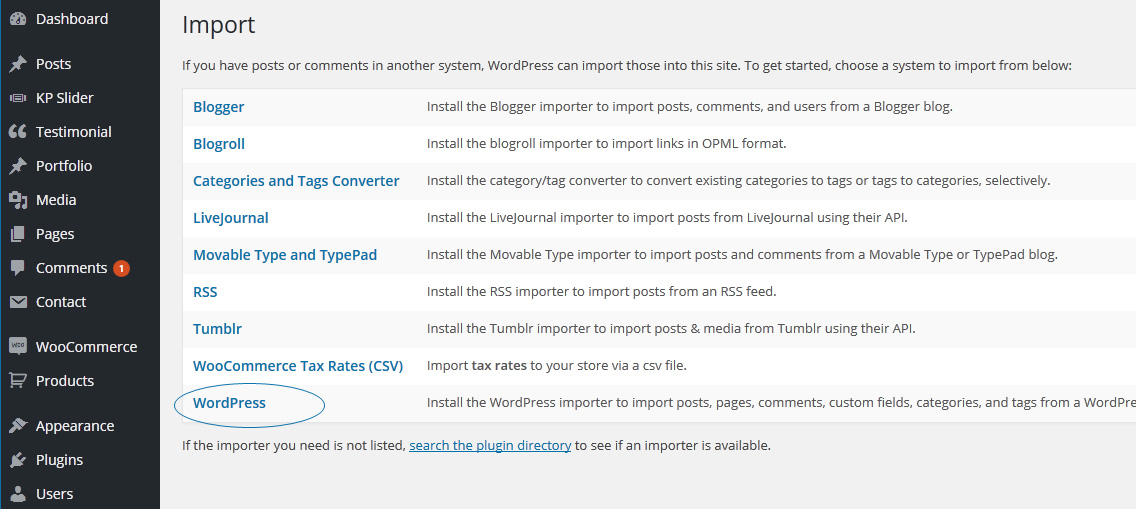
The other option is to install demo data manually you can do that by Navigate to WP Menu -> Tools -> Import. and click on WordPress, Choose browse and select the demo xml file provided inside the Theme -> Framework folder -> Assets -> XML -> Unzip choose the demo version and click on Upload File You can select Download and Import File attachments if you want to get and install demo images Finally click Import, The importing will take a few seconds depending on your internet connection Then you should see the success message Import Content Done , Have Fun Now, the demo content installed and you are ready for the next step.


Important Notes Regarding to Demo Content

Premium Images at our online demo are not included because those are license stock photos and not allowed to distribute. Instead we include other free images


Configure Settings

1. Setting up Permalinks:
Navigate to Settings > Permalinks. Under Common Settings select post name. Now click on Save Changes.


If you choosed one click demo installation you don't have to complete this section if not you should configure the following :


2. Setting up Front Page:
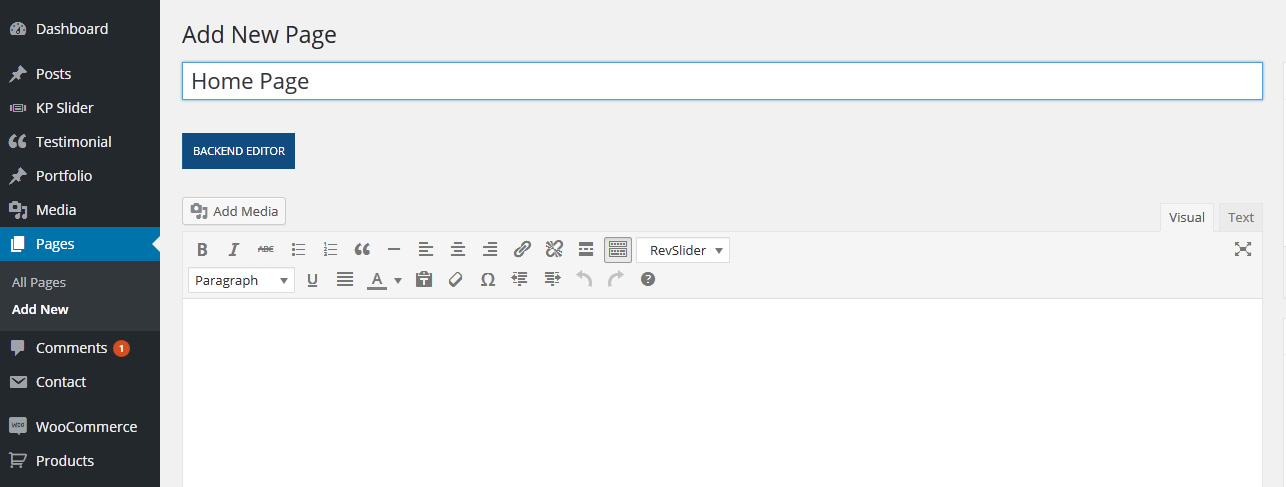
To set up the Frontpage, you must have page (ex. Home Page) in case you didn't import demo data please create a new one , You can give this page a title 'Home Page" and Click Publish. Now browse to Settings Reading and change the setting for Front page displays from Your latest posts into A static page. As you can imagine assign your previously created "Home Page" as the Front Page.


3. Setting up Blog:
To set up the blog, you must have page called (ex.Blog), in case you didn't import demo data please create a new one , you can do that by navigating to WP Menu > Pages > Add New. You can give this page a title of blog for now you do not have to include any content. Click Publish. Once you have created your new page, Goto Settings->Reading. Select A static page and assign the blog for Posts Page.

Note: If you previously Import Demo Data using our Theme Demo Importer you don't have to do the above configuration for Home Page and Blog setting If not you should apply the settings above, to get your frontpage displayed.


Slider Setting


2. Revolution Slider

If you choose one of our Penguin Demos that includes Revolution Slider (ex: Revolution , Landing Versions) We Highly Recomment to Acivate and Import our Example Slider before going to the next Step and import Demo Data, This will Just take a few seconds .


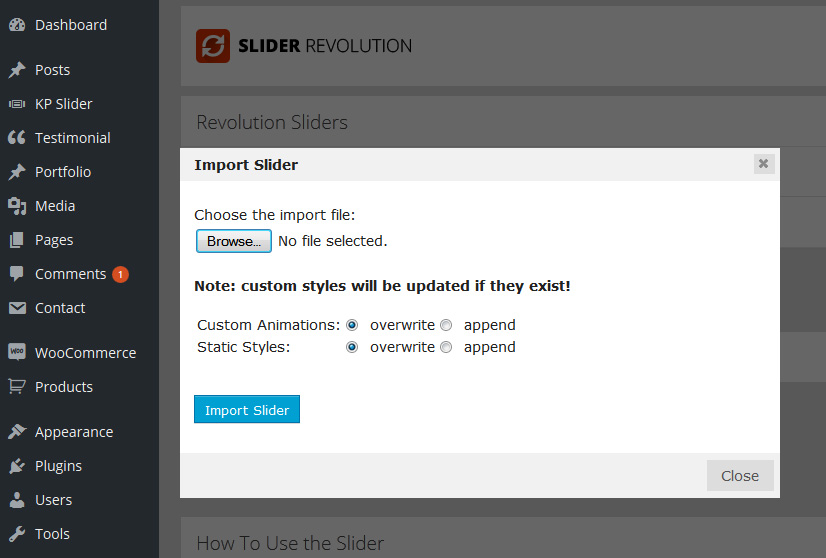
After Install and Acivate Revolution Slider Please visit WP Menu > Revolution Slider Tab and Choose to import Slider

We have included our Demo slider within your package .. Please find a folder Name Revolution Slider Examples Then import the .ZIP File


Theme Options


General Settings

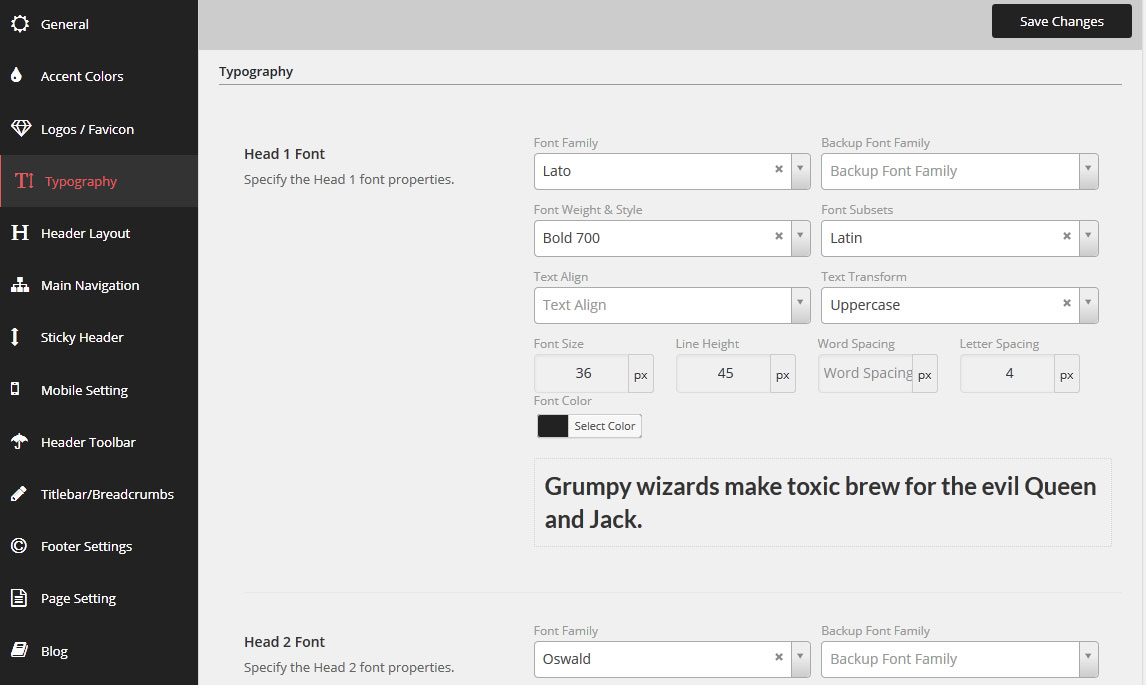
The theme comes packed with alot features that control the layout and extend the functionality of WordPress. You can access it by navigating to WP Menu > Theme Options. The theme options content a number of tabs each one contains many options that control the layout of chosen section


For example, General options Tab will allow you to configure your site setup. Accent Theme Color, , Enable Nice Scroll, Options, Custom CSS, Google Analytics and more.


Page Option

Page options to control Page Layout for Located individually within each post, the Page Options will only apply within the post that has them set. You can also utilize all other Header Options, customize the page Title bar and more. All of these options are useful in different situations and allow you to customize the site to fit your needs.


Post Option

Every blog post you create gets a single post page. The single post page have its post format and depend on your selection for this formate you have to insert the images for gallery, input the id for the video, insert the code for the audio or you can write your quote

Widgets


Penguin Widgets

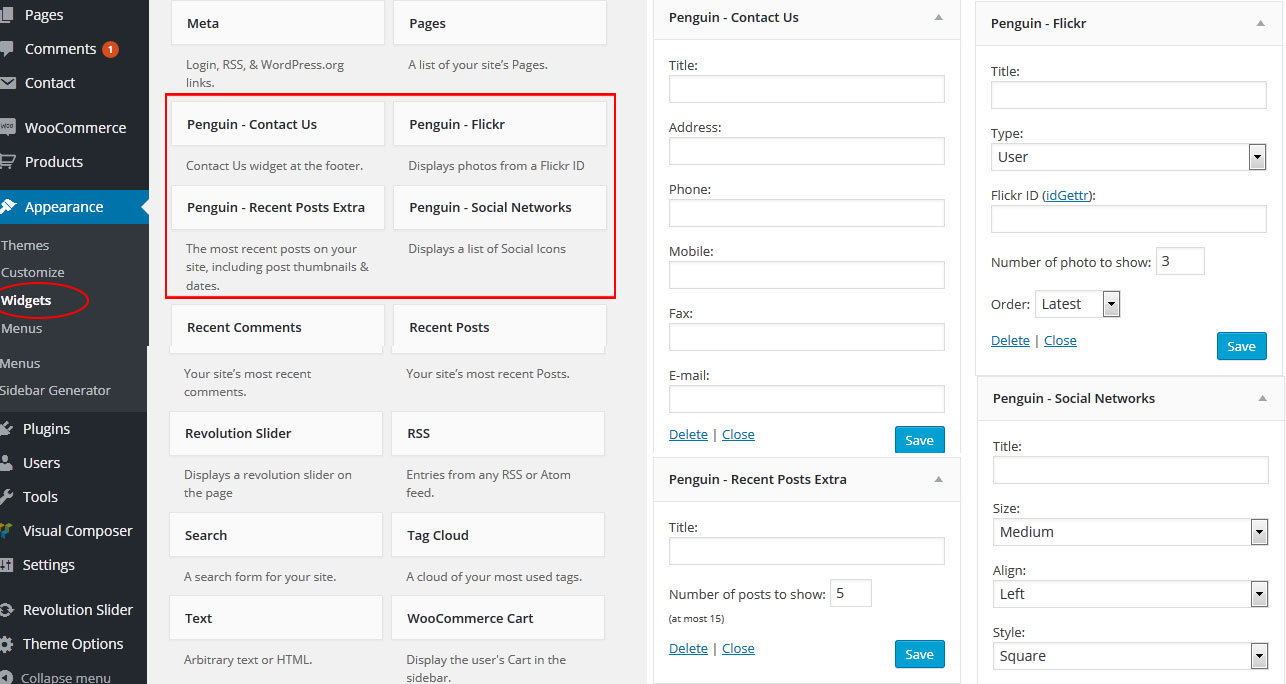
Penguin has special ready-made widgets.
You can add your widget go to WP Menu => Appearance >> Widgets

  • Penguin – Contact Us
  • Penguin – Flicker
  • Penguin – Recent Posts Extra
  • Penguin – Social Network


Blog Sidebar Widget

We included different sidebar for blog archive and single post, that will give you more flexibility to display different widgets at these sections than the regular page default sidebar


Woocommerce Sidebar Widget

We included different sidebar for Woocommerce archive and single Product, that will give you more flexibility to display different widgets at these sections than the regular page default sidebar


Custom Widgets

Slant provide Two Extra Widgets included in the Theme you can use them to display Recent Posts and Contact information

  • Recent Posts Extra
  • SlantPenguin Contact us

Contact Form


Contact Form 7

After activate the theme you will notice a notification at the top of your WP Admin Pages that you should install the Contact Form 7 Plugin that we have integrated with Penguin theme


The Contact Form 7 Plugin is a popular WP Plugin downloaded more than Downloads: 20,000,000

While you active the plugin of the Contact form 7 and install the Demo Data you will have the Defult form structure and style like the screenshot , Please visit WP Menu > Contact > Edit the current Form

If you like to use the form as we style it in Skew Version you have to replace the code below instand of the defult


[text* your-name  placeholder "Your name "]
[email* your-email placeholder "Your Email"]
[text your-subject placeholder "Subject"]
[textarea your-message placeholder "Write something for us"]
<span class="btn btn-Penguin pull-left fa fa-long-arrow-right ">[submit "Send"]</span>


Woocommerce Shopping


Install Woocommerce Pages

if you already Import Penguin Demo data Woocommerce Pages should be ready and you don't need to install it again , Default shopping pages (for ex. Shop , Cart , checkout and etc.) ,


If you didn't install Penguin demo import data you should install woocommerce pages by visiting WP Admin > Woocommerce > System Status > Tools > install Pages Button


Shortcodes


Page Builder

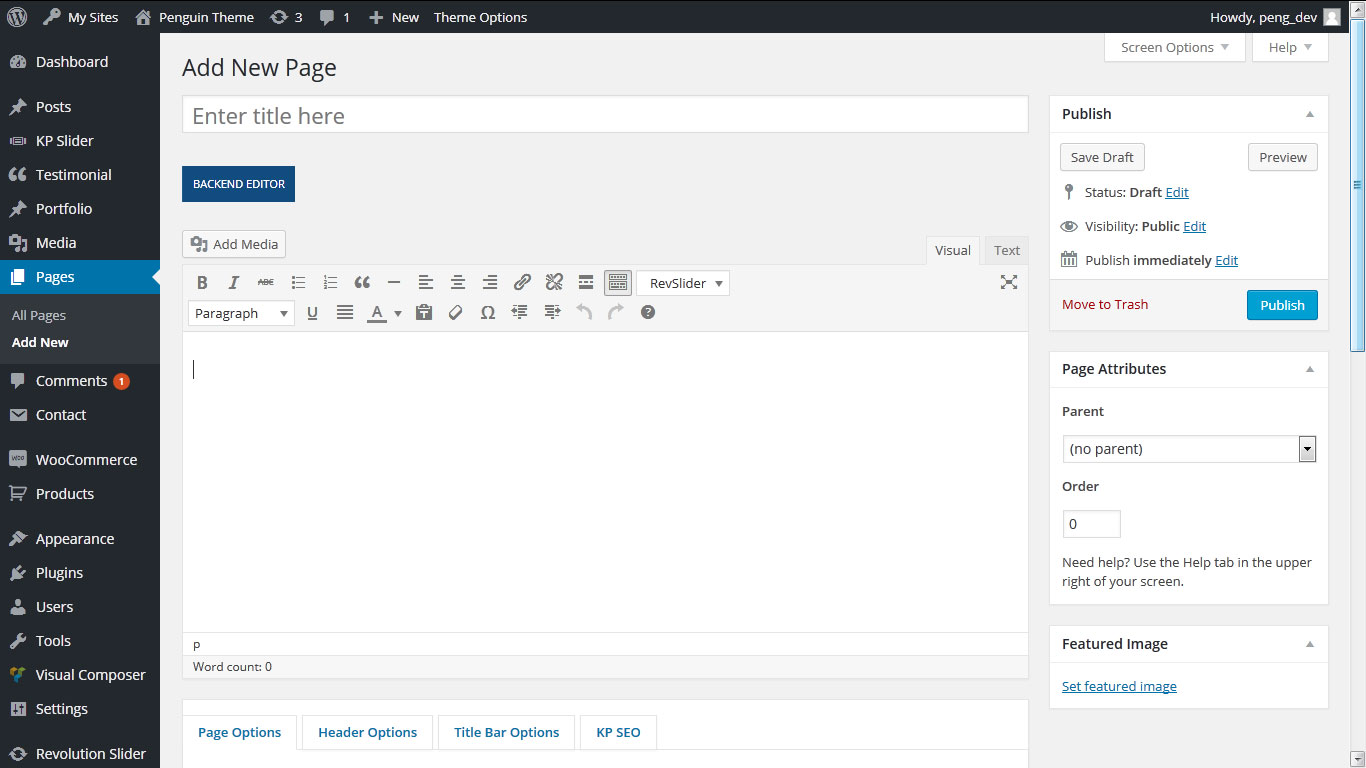
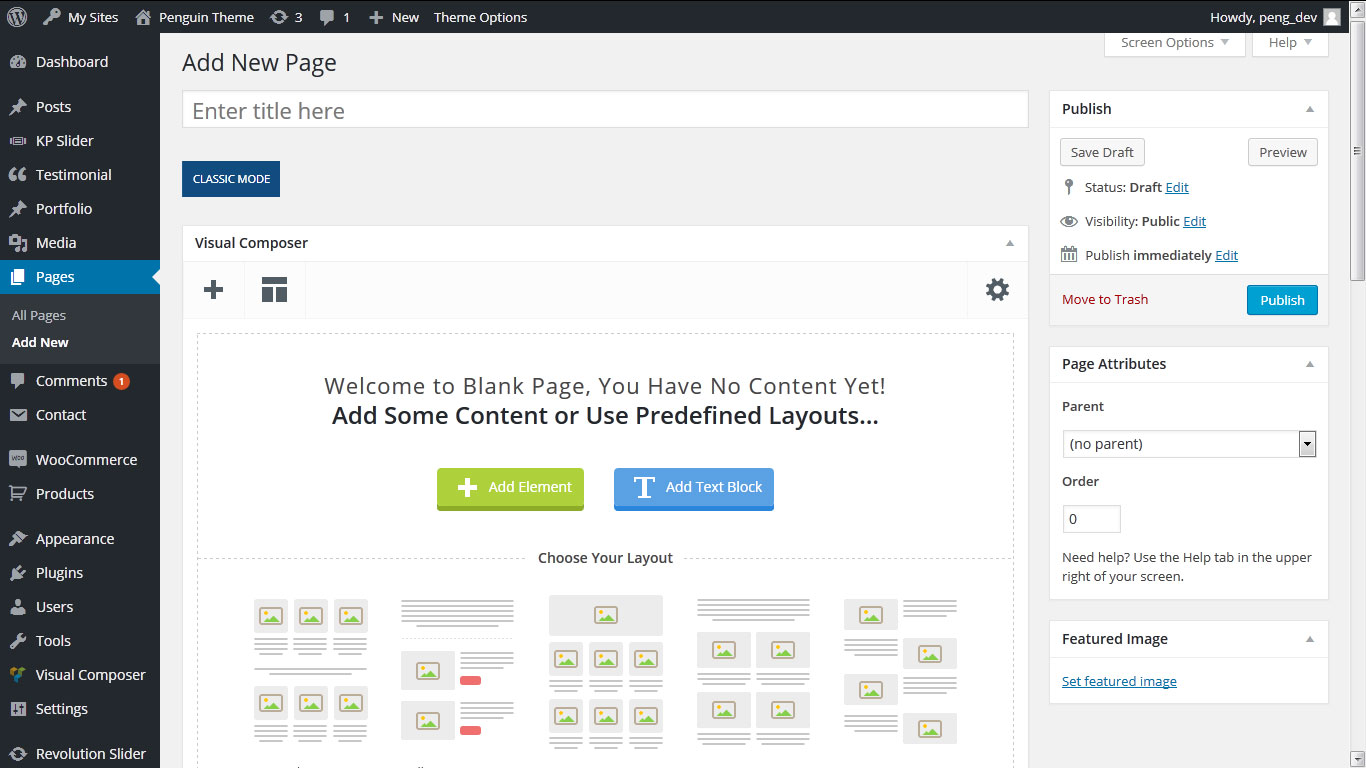
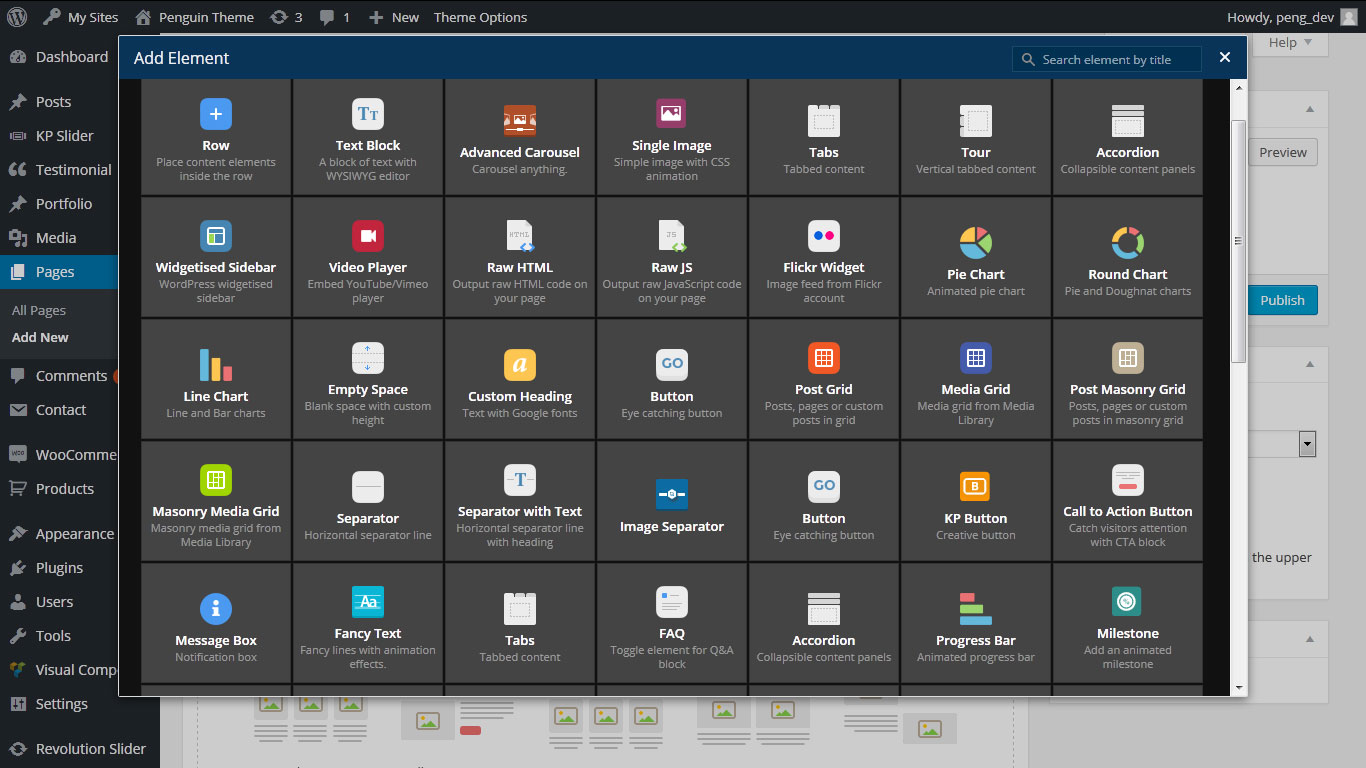
we added Visual Composer plugin. To activate plugin after theme installation, please go to Appearance > Install Plugins section, install it and activate. After that plugin will be ready to use. Plugin after activation is available in the content section where default wordpress editor visible is. So please create/edit page and above wordpress editor you will see two large, blue buttons called Backend Editor and Frontend Editor. This is exactly what you need to build content within Visual Composer To explore the capabilities of Visual Composer, please have a look into documentation


Translating The Theme


Use .mo/.po files and Poedit software

Translation files included into theme within Language Folder we recommend to use .mo/.po files. Those files works in pair so for each language you need to have 2 files with the same name but with different extension. For example if you want to translate theme into German language, you're files should be de_DE.mo and de_DE.po


For editing the PO file you need to use Poedit software . All you need to do is copy the existing .PO File , Rename it as your locale edit the new PO. File with the software , after finish translation please save and upload the new .mo/.po files into "languages" folder where theme is installed.


Extra


Sources and Credits

Note: Images used in the preview are not included in the theme


created: 09/22/2014 - latest update: 09/22/2014 - by: Katon Press